What is an order flow alert?
By MichaelUpdated August 27, 2026
An order flow alert fires on what is happening inside the market rather than only on price. It watches a condition built from executed trades, resting liquidity or positioning, and notifies you when that condition is met, so activity that a price level alone would not reveal can be monitored unattended.
How does an order flow alert work?
A standing condition is evaluated continuously on your behalf. When it becomes true, you are told.
The condition is the part that matters. A price alert asks one question: has the market reached this number. That is a real question and it is a shallow one, because a price is a coordinate, not an event. Two markets can both touch 80,000 and mean completely opposite things, depending on whether they arrived there on heavy aggressive buying or drifted up on nothing while size stacked above.
An order flow alert asks the deeper question. Instead of watching a coordinate, it watches the activity that produces the coordinate: how much traded, which side was the aggressor, whether positions were opened or closed, whether forced closures fired, whether resting liquidity appeared or disappeared. Those conditions describe what the market is doing, and they are what a decision is usually actually based on.
The practical consequence is that the alert survives contact with reality. A price level gets touched by noise several times a session. A condition like aggressive selling accelerated into this level while open interest fell does not.
What can an order flow alert watch?
Three kinds of condition, in increasing order of precision.
A price level. The simplest case, and still useful. It marks a coordinate you have already reasoned about, and it is the right tool when the level itself is the whole thesis.
An indicator’s own condition. Anything that computes a signal can announce it. The alert fires on whatever that calculation considers notable, which means the trigger moves as the calculation does rather than sitting at a fixed number. A level derived from volume or open interest is somewhere different tomorrow, and the alert follows it.
A single plot crossing a value. Indicators often draw several outputs, and usually one of them carries the thing you care about. Alerting on that specific series crossing a threshold is the most precise form: CVD* turning negative*, delta volume* exceeding a threshold*, net positioning* crossing zero* are all one series against one number.
That third form is where order flow alerting actually lives. It lets a condition that took a chart to identify be reduced to something a machine can watch, without reducing it to a price.
Why alert on flow rather than price?
Price tells you where, flow tells you what happened there. A break above a level is a fact. Whether it broke on real aggression or on thin liquidity is the difference between a continuation and a trap, and only the flow answers it.
Flow moves first. Positioning builds, liquidity is pulled and aggression appears before the price change they produce. A condition on the underlying data fires earlier than one on the outcome.
Fewer false positives. Markets touch levels constantly and rarely do anything meaningful about it. A condition that requires activity, not just proximity, filters most of that out on its own.
It matches how the decision was framed. Few traders decide purely on a number. They decide on a number plus what happens when it is reached, and an alert on the flow captures the second half.
Should an alert fire once or repeat?
Once suits an event that only matters the first time. A break above a range high happens, and afterwards the alert has done its job.
Repeating suits a condition you want to keep monitoring, where each occurrence is its own event. Repeating alerts need a cooldown, because a market sitting on a threshold will cross it dozens of times a minute and bury you.
The cooldown is what makes repeat alerts usable at all. Without it, the usual outcome is that you switch notifications off entirely, which is worse than never having set the alert.
How do alerts reach you?
In the application. A notification appears in the interface, with a sound, so it reaches you while you are working elsewhere in the same window.
By webhook. The alert sends an HTTP request to a URL you supply, carrying whatever content you specify. This is the flexible route and it is what connects alerts to everything else: a chat channel, a phone, a script, another system.
The webhook is the one worth understanding, because it is the difference between an alert that works while you are at the desk and one that reaches you anywhere. Chat platforms all accept incoming webhooks, so a condition identified on a chart can end up as a message on your phone.
What are the limits?
An alert is not an order. It tells you a condition was met. It does not act, and by the time you have read and reacted, the opportunity may have moved.
Too many alerts is the same as none. Notifications you dismiss without reading train you to ignore the ones that matter.
A condition is only as good as the reasoning behind it. Alerts make it easy to watch things, which makes it easy to watch things for no reason.
Flow conditions still need context. An alert firing on heavy delta tells you the delta was heavy. Whether that fits your thesis takes looking at the chart, the order book and the tape.
Related: CVD · Delta volume · Order book · Time and sales · Watchlist · Order ticket
Using the Alerts widget in MMT
MMT’s Alerts widget is the list of everything you are watching. Alerts are built from a price, from an indicator, or from a single plot of an indicator, which means every order flow layer in the terminal is something you can be notified about. They run server side whether or not the terminal is open, and can be delivered in the application or pushed to any webhook.
How do you open the Alerts widget?
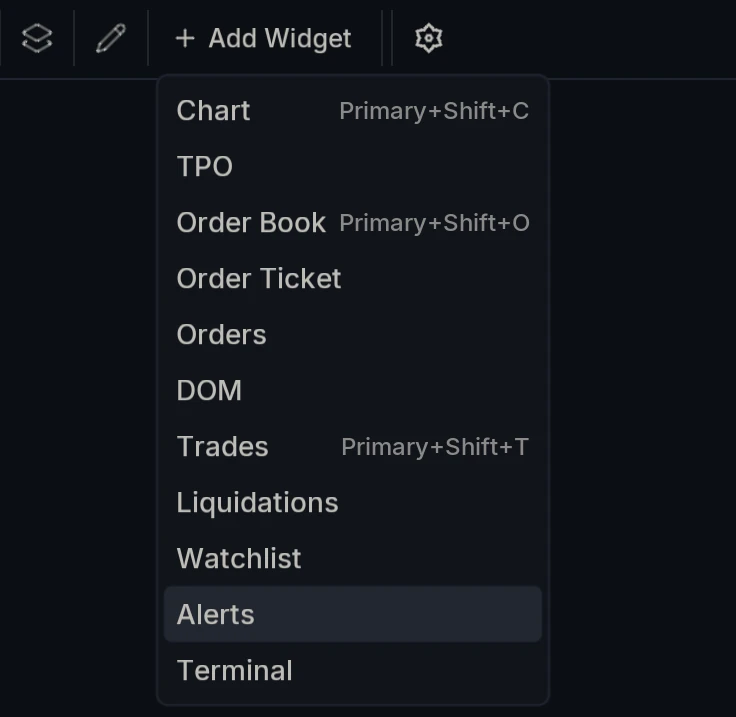
Open Add Widget and choose Alerts.
How do you set an alert on a price?
Put your cursor where you want the level and click the + that appears on the chart. The alert is created at that price.
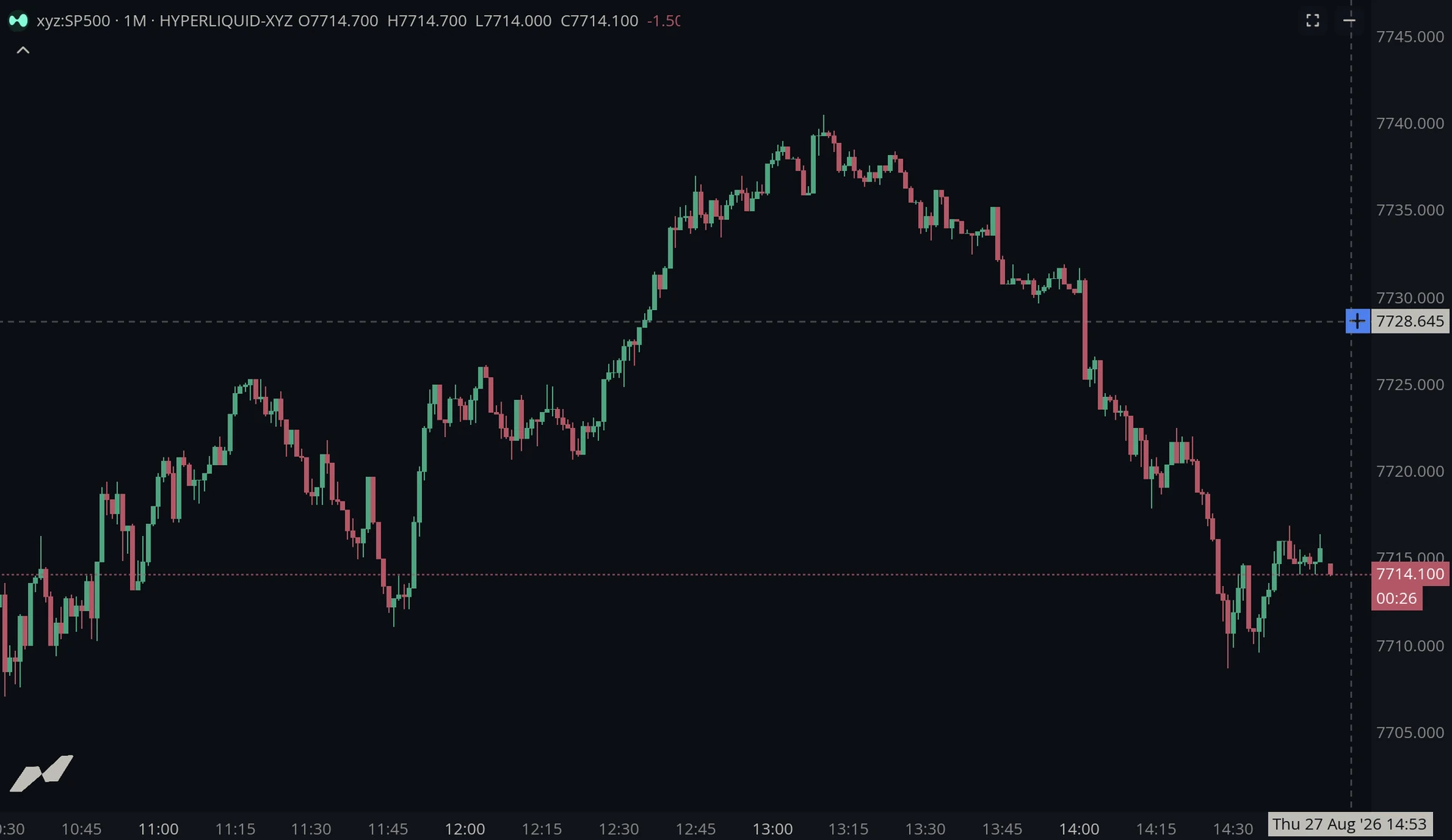
Because the level comes from where you clicked rather than a field you typed into, marking a price you can already see takes about a second. That speed is the reason price alerts remain worth having even though they are the least specific kind.
How do you set an alert on an indicator?
Every indicator carries a bell on its own toolbar. Create alert builds the alert from that layer rather than from a price.
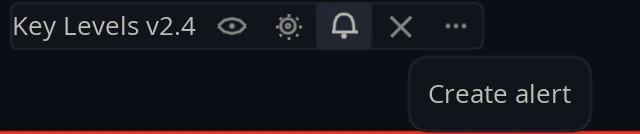
This is the one that matters. Any layer you have on the chart becomes something you can be alerted on, so a condition on liquidations, open interest, CVD or anything else in the library is set from the layer itself rather than reconstructed as a price.
What does the alert list show?
Each row carries the alert’s Name, its Status, and its Webhook if one is set.
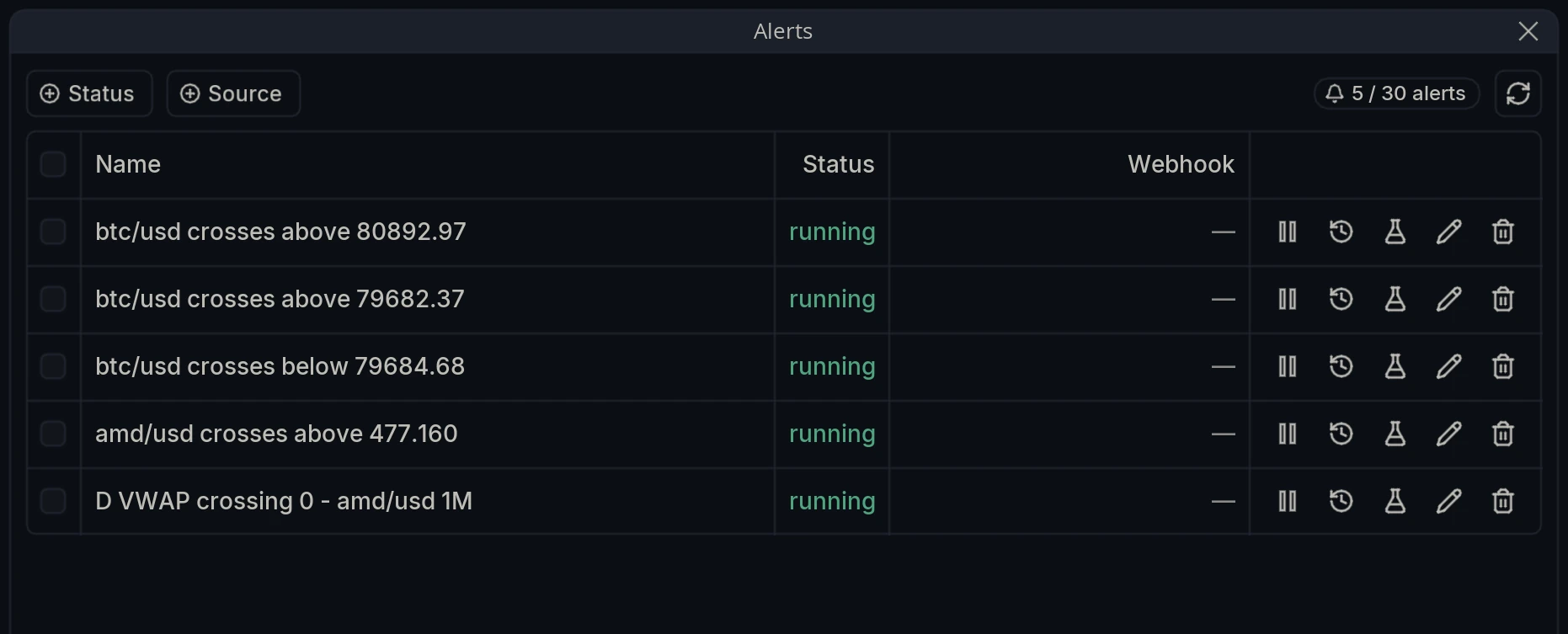
Names are generated from the condition, so btc/usd crosses above 80892.97 and D VWAP crossing 0 - amd/usd 1M describe themselves without being opened. They can be renamed in the editor.
Five controls sit on each row: pause the alert, open its history, Send test alert, edit it, or delete it. The counter at the top right shows how many alerts you have running against the number your subscription allows.
How do you filter the list?
Status filters by state: Running, Paused or Error.
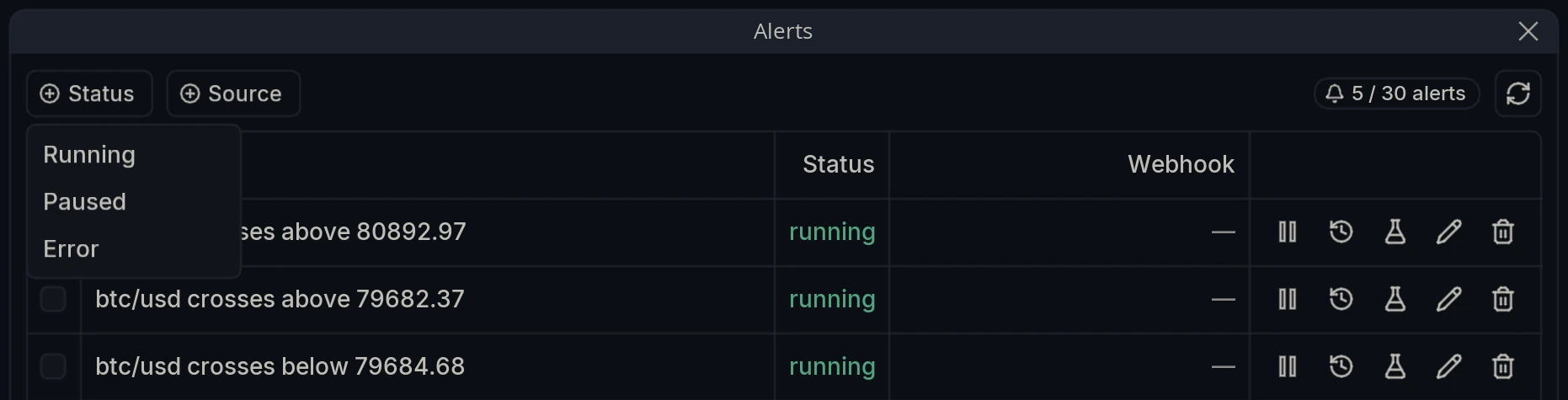
Error is the one to check periodically. A failed alert is silent in exactly the same way as one that has not triggered, and this filter is the only thing that distinguishes them.
Source filters by what the alert is watching: Price, Script or Plot series.
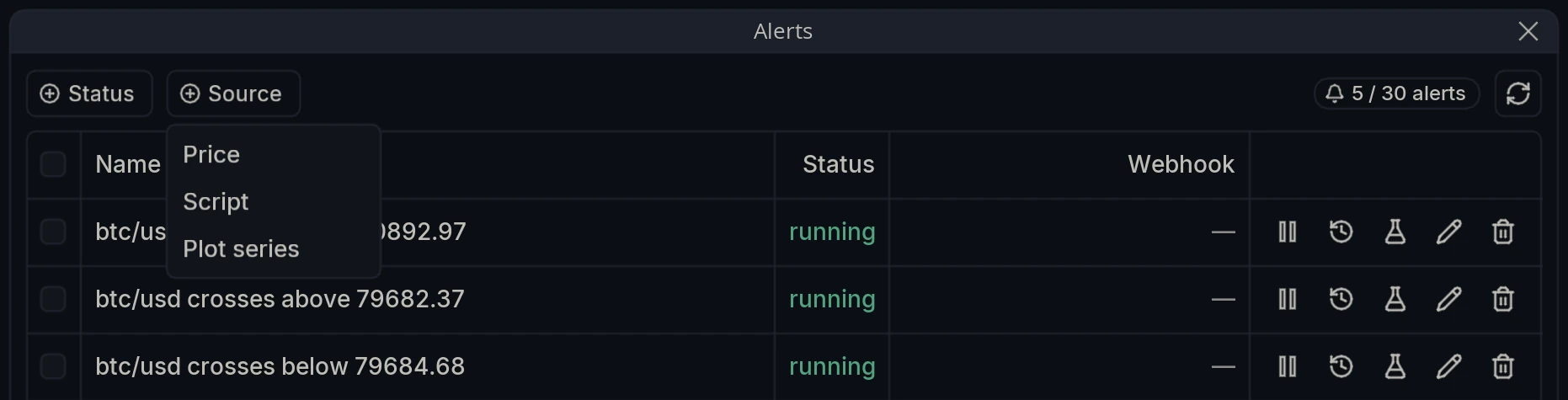
Those are the three kinds described above. Price is a level on the chart, Script is an indicator’s own condition, and Plot series is one specific output of an indicator crossing a value.
How do you test an alert?
The flask icon on each row is Send test alert. It fires the alert immediately, delivering it exactly as a real trigger would.
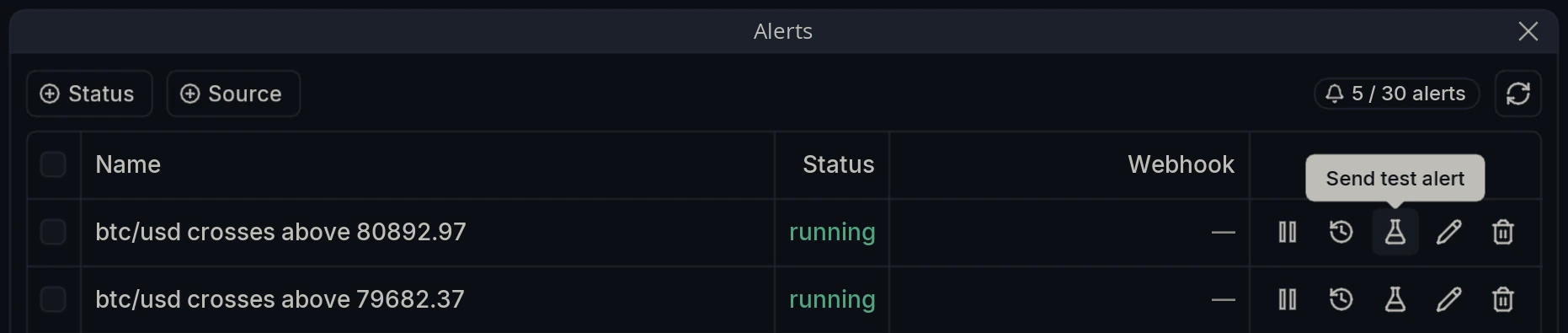
Use it whenever a webhook is involved. A webhook with a wrong URL, a malformed body or a missing permission fails silently, and firing it deliberately is the only way to find out before it matters.
The history icon next to it opens the log of what that alert has fired, which is the other half of the same check.
What is in the alert editor?
The pencil opens Edit alert, and everything about how the alert behaves lives here.
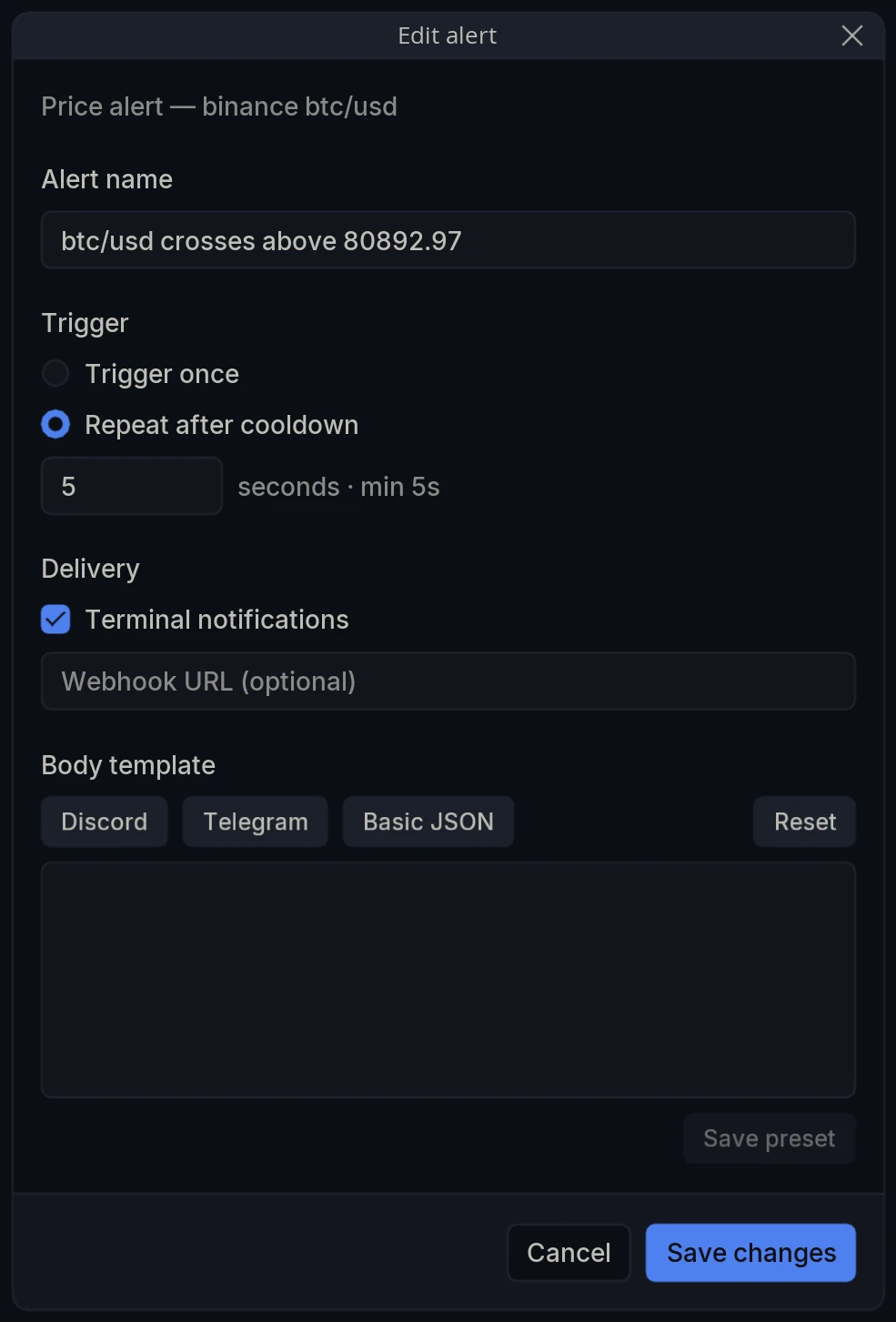
Alert name is the label shown in the list. The generated name is usually fine; rename it when several alerts on the same market would be hard to tell apart.
Trigger is Trigger once or Repeat after cooldown, with the cooldown set in seconds.
Delivery carries Terminal notifications and an optional Webhook URL.
Body template is what gets sent to that webhook. Discord, Telegram and Basic JSON fill the box with a starting template for that destination, Reset clears it, and Save preset stores the body you have written.
What happens when an alert fires?
A notification appears in the terminal, with a sound.
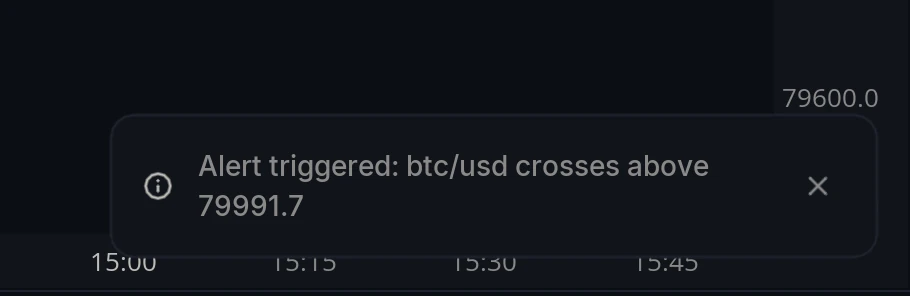
The message carries the alert’s name, which is why keeping the generated names readable is worth doing. Dismiss it with the close control.
How do you send alerts to Discord?
Discord accepts incoming webhooks directly, so there is no bot to create and no chat ID to look up.
-
Open Discord and go to the server you want the alerts in.
-
Open the target channel.
-
Click Edit Channel → Integrations → Webhooks.
-
Click New Webhook.
-
Give it a name, for example MMT Alerts.
-
Select the channel the alerts should be posted to.
-
Click Copy Webhook URL.
The URL looks like https://discord.com/api/webhooks/<webhook_id>/<webhook_token>. Paste it straight into Webhook URL in the alert editor.
Warning: Keep the webhook URL private. Anyone who has it can post to that channel.
Then set the body. Discord on the Body template row fills it in, and this is what it sends:
{ "embeds": [ { "title": "✅ BTC Alert", "color": 65280, "fields": [ { "name": "Exchange", "value": "{{market.exchange}}", "inline": true }, { "name": "Symbol", "value": "{{upper market.symbol}}", "inline": true }, { "name": "Timeframe", "value": "{{market.timeframe}} seconds", "inline": true }, { "name": "Price", "value": "{{num bar.close 2}}", "inline": true }, { "name": "Time", "value": "{{time event.unix}}", "inline": false } ], "footer": { "text": "MMT Alert" } } ]}Discord renders that as an embed rather than a line of text, which is why the fields are worth keeping. "inline": true puts a field alongside its neighbors instead of on its own row, so the exchange, symbol, timeframe and price sit in a compact block and the time gets a line of its own.
How do you send alerts to Telegram?
Telegram needs a bot and a chat ID before the webhook will work.
Create the bot. Message @BotFather in Telegram, run /newbot, follow the prompts, and copy the bot token.
Find your chat ID. Send your bot a direct message, then open https://api.telegram.org/bot<bot_token>/getUpdates in a browser and read the chat.id value out of the response. That is the ID for direct messages.
For a group, add the bot to the group, send a message there such as /start, and open the same updates URL again. Group IDs begin with a minus sign. If the group does not appear, open @BotFather, run /setprivacy, select your bot and disable privacy mode, then send another message and check again.
Configure the webhook. Use https://api.telegram.org/bot<bot_token>/sendMessage as the Webhook URL, then set the body. Telegram on the Body template row fills it in:
{ "chat_id": "<chat_id>", "parse_mode": "Markdown", "text": "*{{alert.name}}*\n{{market.exchange}} {{upper market.symbol}}\nPrice: `{{num payload.price 2}}`\nTime: `{{time event.unix}}`"}Replace <chat_id> with the ID you looked up. parse_mode set to Markdown is what makes the asterisks bold the alert name and the backticks render the price as code, which is worth keeping: a monospaced price is far easier to read on a phone than a proportional one.
The same URL serves both destinations. Only the chat_id changes, so delivering to yourself and to a group means two alerts pointing at the same endpoint with different bodies.
What can a template contain?
Templates carry placeholders that are filled in when the alert fires, so one template works for every market it is used on.
{{alert.name}} - The alert’s own name, as shown in the list.
{{market.exchange}} - The venue the alert fired on.
{{market.symbol}} - The market. {{upper market.symbol}} uppercases it.
{{market.timeframe}} - The timeframe, in seconds.
{{bar.close}} - The bar’s closing price. {{num bar.close 2}} rounds it to two decimals.
{{payload.price}} - The price carried by the alert itself.
{{event.unix}} - When it fired. {{time event.unix}} formats it as a readable time.
The num and time helpers are what make the output legible. A raw Unix timestamp in a chat message is not something anyone reads at a glance, and neither is a price to eight decimal places.